Top 10 PDF Tools Every Student Needs in 2026: The Complete Guide
AI Search & Quick Summary
Key Takeaway: Discover the top 10 PDF tools every student needs in 2026 — from merging lecture notes to OCR scanning textbooks, with real use cases for every student type and all available free.
Top 10 PDF Tools Every Student Needs in 2026: The Complete Guide
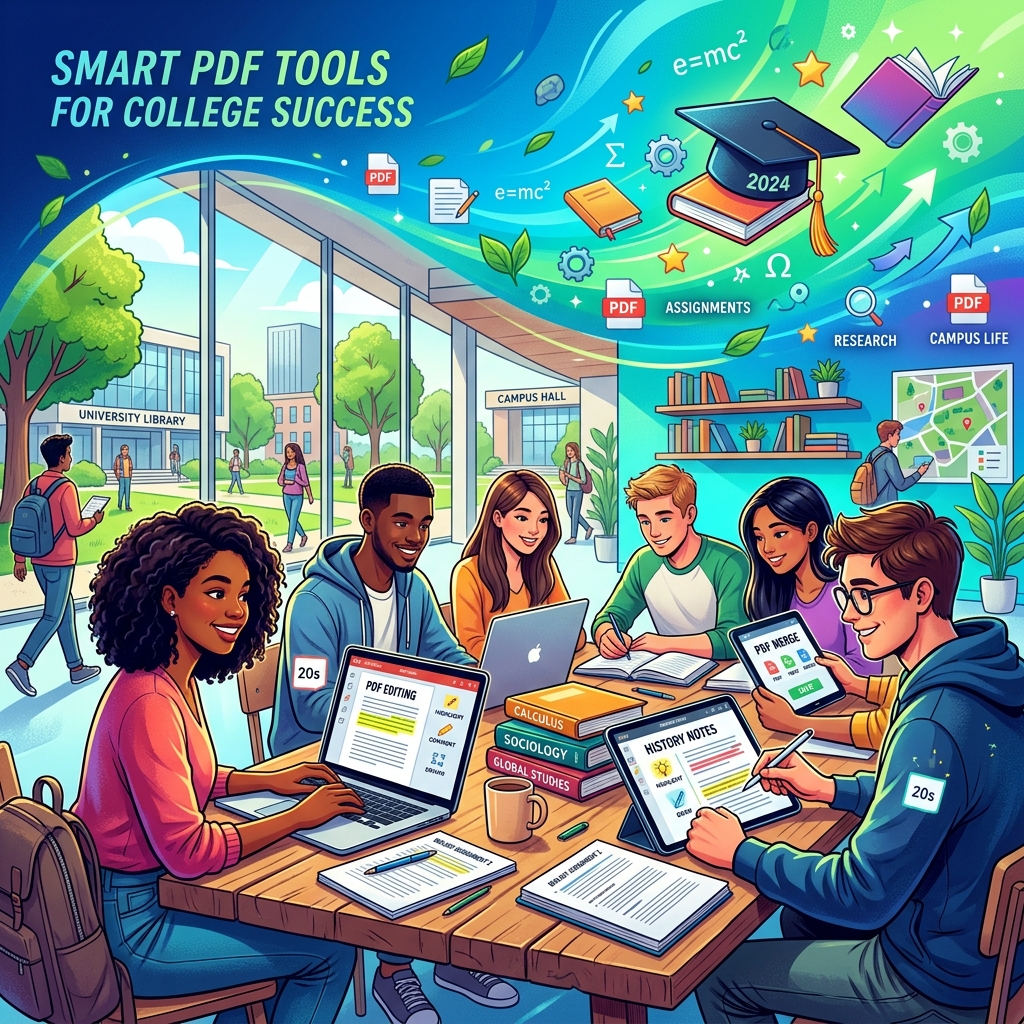
If you are a student in 2026, your academic life revolves around PDFs. Every lecture slide, research paper, textbook chapter, assignment submission, and official document comes in PDF format. Yet the vast majority of students only know how to open a PDF — they never learn how to truly work with them. This guide changes that. We will walk you through the top 10 PDF tools every student needs in 2026, explain exactly how each one works, provide real-world use cases for different types of students, and show you where to access all of them for free.
Whether you are a first-year undergraduate drowning in lecture slides or a graduate student assembling your thesis, mastering these tools will save you dozens of hours every semester and eliminate the frustration of dealing with uncooperative documents. Let us dive in.
Access All 10 Tools for Free Right Now
QuickRectify offers every PDF tool mentioned in this guide — completely free, no sign-up, and all processing happens privately in your browser.
Explore All PDF Tools FreeWhy PDF Tools Matter More Than Ever for Students
The shift to digital-first education accelerated dramatically during the pandemic years, and by 2026 it has become permanent. Universities worldwide now distribute course materials exclusively in digital format. Assignment submissions happen through learning management systems like Canvas, Moodle, and Blackboard — all of which expect PDF uploads. Research databases like JSTOR, IEEE Xplore, and Google Scholar deliver papers as PDFs.
Without the right tools, students waste enormous amounts of time on tasks that should take seconds: manually retyping text from scanned documents, emailing oversized files back and forth, printing and re-scanning pages just to rearrange them, or struggling with assignment templates locked in uneditable PDF format. The ten tools below eliminate every one of these pain points.
1. PDF Merger — Combine All Your Notes Into One File
The PDF merger is arguably the single most useful tool for students. Instead of juggling twenty separate files for a single subject — lecture slides from Week 1, a tutorial handout, your own typed notes, a reference article — you can merge them all into one cohesive document. This is transformative for exam revision because you have everything in one place, searchable and scrollable.
How It Works
A PDF merger takes two or more individual PDF files as input and combines them sequentially into a single output file. Most good mergers let you drag and drop to rearrange the order before combining. The output preserves all formatting, bookmarks, and hyperlinks from the original files.
Real-World Student Use Cases
- Engineering students: Merge all Chapter 1-5 lecture slides, tutorial sheets, and solved examples into one consolidated revision PDF before midterms.
- Law students: Combine case briefs, statutory provisions, and lecture notes for a single subject into one reference document for moot court preparation.
- Medical students: Merge anatomy diagrams, pathology notes, and clinical case studies into organ-system-based study packs.
Try the QuickRectify PDF Merger — it processes everything in your browser so your academic files never leave your device.
2. PDF Splitter — Extract Exactly What You Need
The opposite of merging, PDF splitting lets you extract specific pages or page ranges from a larger document. This is essential when you have a 500-page textbook PDF but only need Chapter 12 for tomorrow's seminar, or when a professor uploads a single massive file containing the entire semester's worth of slides.
How It Works
You upload the source PDF, specify which pages you want (e.g., pages 145-167, or pages 3, 7, 12), and the tool creates a new PDF containing only those pages. The original file remains untouched.
Real-World Student Use Cases
- Exam preparation: Extract only the chapters covered in your upcoming test from a massive textbook PDF.
- Group projects: Split a shared research paper so each team member gets their assigned section to annotate.
- Thesis work: Extract your literature review chapter as a standalone document for your advisor to review.
3. PDF Compressor — Shrink Files Without Losing Quality
File size limits are the bane of every student's existence. Your university's submission portal caps uploads at 10MB. Your email provider limits attachments to 25MB. Meanwhile, your research report with embedded charts and images weighs in at 45MB. A PDF compressor solves this by reducing file sizes by 50-80% with minimal visible quality loss.
How It Works
PDF compression works primarily by optimizing the images embedded within the document. Since images account for 80-90% of most PDF file sizes, re-encoding them at a lower resolution (e.g., from 300 DPI to 150 DPI) dramatically reduces the overall file size. Text and vector graphics remain untouched and sharp. Good compressors offer multiple compression levels — low, medium, and high — so you can balance quality against file size.
Real-World Student Use Cases
- Assignment submission: Compress a 40MB lab report to under 10MB to meet your LMS upload limit.
- Emailing professors: Shrink a presentation-heavy PDF to fit within Gmail's 25MB attachment limit.
- Mobile studying: Compress large textbook PDFs so they load faster on your tablet or phone.
Use the QuickRectify PDF Compressor to compress files directly in your browser with zero uploads to external servers.
4. PDF Annotator — Your Digital Highlighter and Notebook
Gone are the days of printing out pages just to highlight them. A PDF annotator lets you highlight text, add sticky notes, draw freehand, underline key passages, and insert text boxes — all digitally. This is not only better for the environment but also vastly more organized than paper notes, because digital annotations are searchable.
How It Works
Annotation tools overlay a transparent layer on top of your PDF where you can add highlights (in multiple colors), text comments, freehand drawings, shapes, stamps, and bookmarks. Your annotations are saved within the PDF itself, so when you share the file, recipients see your notes too.
Real-World Student Use Cases
- Active reading: Highlight key definitions in yellow, important formulas in green, and exam-likely content in pink for efficient revision.
- Peer review: Add comments and suggestions directly on a classmate's draft essay.
- Research: Annotate journal articles with your own analysis notes in the margins for your literature review.
5. OCR Tool — Make Scanned Documents Searchable and Copyable
OCR (Optical Character Recognition) is a technology that converts images of text — such as scanned book pages, photographed whiteboards, or PDF scans of old documents — into actual searchable, selectable, copyable text. For students dealing with older academic materials, this tool is indispensable.
How It Works
The OCR engine analyzes the pixel patterns in an image, identifies letter shapes using trained machine learning models, and converts them into Unicode text characters. Modern OCR engines achieve 95-99% accuracy on clean printed text and can handle multiple languages, tables, and even handwriting with varying degrees of success.
Real-World Student Use Cases
- Library research: Scan a chapter from a library-only reference book and run OCR so you can search, copy, and cite specific passages.
- Lecture capture: Photograph the whiteboard at the end of class and run OCR to convert the professor's handwriting into editable text notes.
- Historical research: Convert scanned archival documents into searchable text for your history or political science thesis.
6. PDF to Word Converter — Edit What Was Never Meant to Be Edited
Professors frequently distribute assignment templates, forms, and worksheets as PDFs — which are, by design, not easily editable. A PDF to Word converter transforms these locked documents into fully editable .docx files, letting you type your answers directly into the template, adjust formatting, and then convert back to PDF for submission.
Real-World Student Use Cases
- Assignment templates: Convert a PDF worksheet to Word, fill in your answers neatly using a keyboard instead of handwriting, then submit.
- Resume building: Convert a beautifully designed PDF resume template to Word so you can customize it with your own details.
- Collaborative editing: Convert a PDF report to Word so multiple team members can use Track Changes for collaborative editing.
The QuickRectify PDF to Word Converter preserves formatting with exceptional accuracy — tables, fonts, images, and spacing all come through intact.
7. PDF Password Protector — Secure Your Academic Work
Academic integrity matters, and so does protecting your intellectual property. A PDF password protector lets you add encryption to your documents, requiring a password to open or edit them. This is particularly important for thesis submissions, original research, and any document you share with a limited audience.
Real-World Student Use Cases
- Thesis submission: Password-protect your dissertation before sending it to committee members to prevent unauthorized distribution or editing.
- Confidential research: Encrypt research data files containing survey responses or interview transcripts to comply with IRB (ethics board) requirements.
- Exam materials: If you are a teaching assistant, password-protect answer keys before distributing them to other TAs.
8. PDF Watermarker — Brand and Protect Your Documents
A PDF watermarker adds a semi-transparent text or image overlay across every page of your document. This serves as both a branding tool and a deterrent against unauthorized redistribution. If someone screenshots or shares your watermarked notes, your name is visibly embedded.
Real-World Student Use Cases
- Sharing study notes: Watermark your meticulously prepared notes with your name before sharing them on class WhatsApp groups — credit where credit is due.
- Draft marking: Add a "DRAFT" watermark to preliminary versions of your thesis or report to clearly distinguish them from the final version.
- Portfolio pieces: Watermark design work or writing samples in your portfolio to prevent plagiarism.
9. PDF to PowerPoint Converter — Build on Existing Slides
When professors share lecture slides as PDFs, they become static and uneditable. A PDF to PowerPoint converter transforms these into fully editable .pptx files, allowing you to build upon them for your own presentations, add your own notes to individual slides, or restructure the content for study purposes.
Real-World Student Use Cases
- Presentation prep: Convert a professor's PDF slides to PowerPoint, then add your own analysis slides for a seminar presentation.
- Study aids: Convert slides to PowerPoint and add detailed speaker notes to each slide as a study technique.
- Group projects: Convert reference material PDFs into PowerPoint format so your team can divide and edit individual slides.
10. PDF Page Rotator — Fix Orientation Issues Instantly
Scanned documents, photographed pages, and some downloaded PDFs arrive with incorrect page orientations — sideways, upside down, or a frustrating mix of portrait and landscape pages. A PDF page rotator lets you fix these in seconds without needing to re-scan or re-download anything.
Real-World Student Use Cases
- Scanned assignments: Fix sideways pages from your phone scanner app before submitting to your university portal.
- Mixed-orientation documents: Correct a PDF where some pages are landscape charts and others are portrait text, standardizing the reading experience.
- Library scans: Fix the rotation on pages scanned from library books that were placed crookedly on the scanner.
Comparison Table: Quick Reference for All 10 Tools
Here is a side-by-side comparison to help you quickly identify which tool solves which problem:
- PDF Merger: Problem Solved — Too many separate files. Time Saved — 15-30 min per merge session. Best For — All students.
- PDF Splitter: Problem Solved — Need only certain pages. Time Saved — 5-10 min per extraction. Best For — Students with large textbooks.
- PDF Compressor: Problem Solved — File too large to submit. Time Saved — 10-20 min vs resizing manually. Best For — Students submitting assignments online.
- PDF Annotator: Problem Solved — Need to highlight and take notes. Time Saved — Eliminates printing costs entirely. Best For — Active readers and researchers.
- OCR Tool: Problem Solved — Scanned text is not searchable. Time Saved — Hours of manual retyping. Best For — Research and history students.
- PDF to Word: Problem Solved — Cannot edit a PDF. Time Saved — 20-45 min per document. Best For — Students filling out templates.
- Password Protector: Problem Solved — Unauthorized access to documents. Time Saved — Peace of mind. Best For — Thesis and research students.
- Watermarker: Problem Solved — Unattributed sharing of your work. Time Saved — Prevents plagiarism issues. Best For — Students sharing notes.
- PDF to PPT: Problem Solved — Cannot edit lecture slides. Time Saved — 30-60 min per presentation. Best For — Students giving presentations.
- Page Rotator: Problem Solved — Wrong page orientation. Time Saved — 2-5 min per document. Best For — Students scanning documents.
Which Tools Matter Most by Student Type
Engineering and Computer Science Students
Your top priorities are the PDF merger (combine lab manuals, lecture notes, and reference sheets), PDF compressor (large lab reports with images), and PDF to Word converter (edit assignment templates). Engineering courses generate massive amounts of documentation, and these three tools will handle 80% of your PDF needs.
Humanities and Social Science Students
Invest your time in the PDF annotator (deep reading and annotation of journal articles), OCR tool (converting scanned archival materials), and PDF splitter (extracting relevant chapters from large readers). Your work is reading-intensive, and these tools transform passive reading into active, searchable research.
Medical and Life Science Students
The PDF merger is critical for assembling system-based study packs. The PDF annotator helps you mark up anatomy diagrams and pathology images. The PDF compressor is essential because medical documents tend to be image-heavy and enormous.
Business and MBA Students
Focus on the PDF to PowerPoint converter (you will give dozens of presentations), PDF watermarker (protecting case study analyses), and PDF merger (assembling comprehensive business plans from multiple source documents).
Why QuickRectify Is the Best Free Option for Students
All ten of these tools are available for free at QuickRectify PDF Tools. Here is what makes it the ideal choice for students:
- 100% Free: No hidden trials, no premium tiers, no "3 free uses per day" limitations. Every tool is completely free.
- No Sign-Up Required: You do not need to create an account, verify an email, or hand over any personal information.
- Complete Privacy: All processing happens locally in your web browser using JavaScript. Your files are never uploaded to any server. This is critical for students handling sensitive research data or personal academic documents.
- No File Size Limits: Unlike competitors that cap uploads at 10MB or 20MB, QuickRectify processes files of any size because the work happens on your own computer's hardware.
- Works on Any Device: Whether you are on a Windows laptop, a MacBook, a Chromebook, or even an iPad, QuickRectify works in any modern web browser.
- No Watermarks Added: Your output files are clean and professional — no "Made with [Tool Name]" branding added to your documents.
Tips for Getting the Most Out of PDF Tools
Here are some pro tips that most students discover only after months of use:
- Create a semester study pack early: At the start of each semester, merge all available lecture slides for each subject into single files. This one-time investment pays dividends throughout the term.
- Compress before submitting, not before storing: Always keep the original high-quality version and only compress the copy you submit. You may need the full-quality version later.
- Use OCR immediately after scanning: Run OCR on scanned documents right away, while you still remember the context. A searchable PDF is infinitely more useful than a stack of image files.
- Watermark shared notes with your university email: This makes it clear the notes originated from you without being overly obtrusive.
- Batch process when possible: Instead of converting or compressing files one at a time, gather all your files and process them in a single session to save time.
Frequently Asked Questions
Are these PDF tools really free, or is there a catch?
QuickRectify's PDF tools are genuinely 100% free with no catch. There is no trial period, no premium version required for basic features, and no watermarks added to your output files. The tools are funded by non-intrusive advertising, so you never need to pay anything. You do not even need to create an account.
Is it safe to use online PDF tools for my thesis or research documents?
Safety depends entirely on which tool you choose. Many online PDF tools upload your files to their servers for processing, which poses privacy risks. QuickRectify is different — all processing happens locally in your browser using JavaScript. Your files never leave your device, making it safe for even the most sensitive academic documents including unpublished research, thesis drafts, and documents containing personal data.
Can I use these tools on my phone or tablet?
Yes. QuickRectify's tools are fully responsive and work on smartphones and tablets. Whether you are using an iPhone, Android phone, iPad, or Android tablet, you can access all ten tools through your mobile browser. This is particularly useful for students who need to quickly compress or merge files on the go before a submission deadline.
What is the maximum file size I can process?
Because QuickRectify processes files locally on your device rather than uploading them to a server, there is no artificial file size limit imposed by the platform. The practical limit is determined by your device's available RAM. Most modern laptops with 8GB or more of RAM can comfortably handle PDFs up to 200-300MB. For extremely large files (500MB+), close other browser tabs and applications to free up memory.
Do I need to install any software or browser extensions?
No. QuickRectify works entirely within your web browser — no downloads, no installations, no browser extensions, and no plugins required. Simply visit quickrectify.com/pdf-tools, choose the tool you need, and start working immediately. This also means the tools are always up to date without you needing to manually update anything.
Conclusion
PDFs are not going anywhere — if anything, they are becoming even more central to academic life as universities continue their digital transformation. The students who thrive are not just the ones who read the most or study the hardest — they are the ones who work efficiently. Mastering these ten PDF tools eliminates hours of busywork every week, letting you focus on what actually matters: learning, creating, and excelling in your studies.
Start with the PDF merger and PDF compressor — these two alone will have an immediate impact on your workflow. Then gradually incorporate the others as your needs arise. All ten are waiting for you, completely free, at QuickRectify PDF Tools.

About the Author: Rahul Das
Tech Enthusiast, Software Developer, and Content Creator. Passionate about building scalable web applications and sharing practical knowledge to help students and professionals grow in their tech careers.
Related Articles
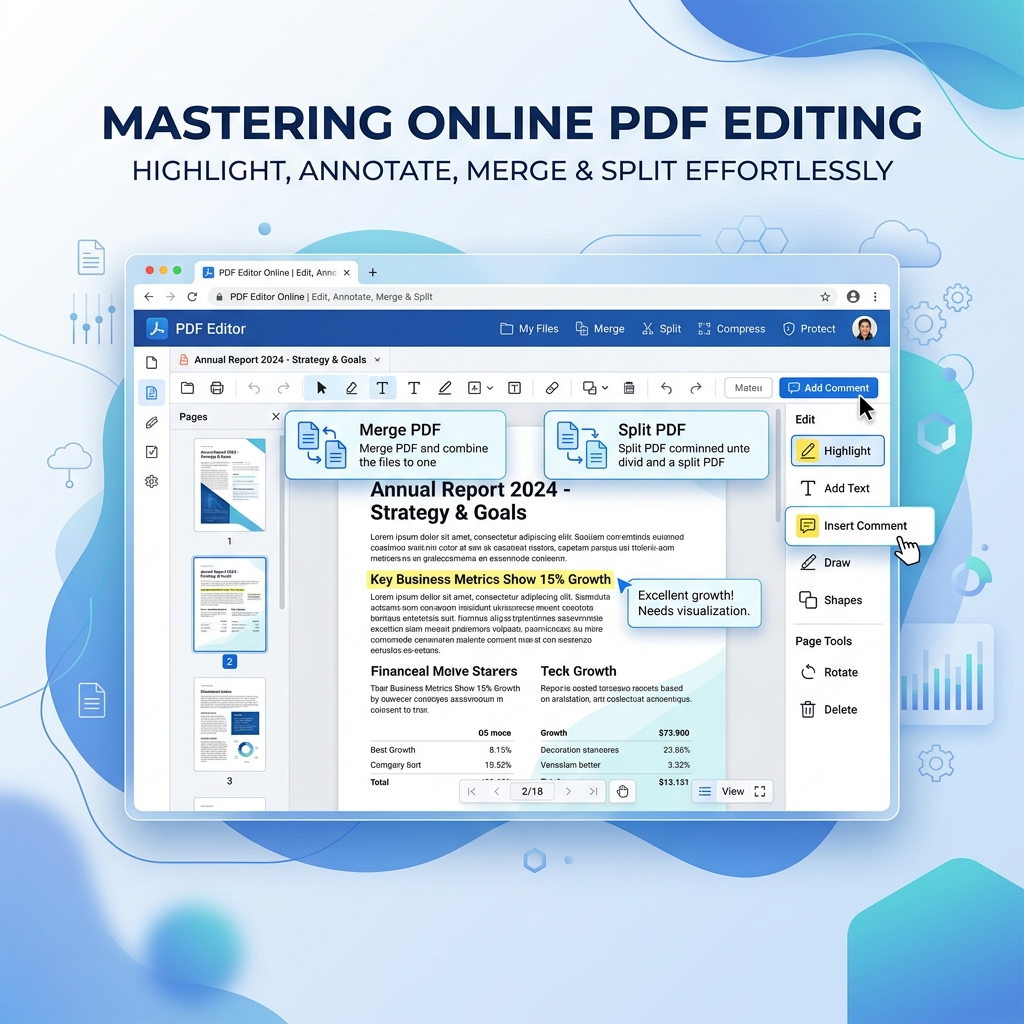
How to Convert PDF to Word Without Losing Formatting (100% Free)
Struggling with broken layouts? Learn the exact methods to convert PDF files to Word documents while perfectly preserving fonts, images, tables, and spacing.
How to Merge PDF Files for Free in 2026: 5 Methods Compared
Compare five proven methods to merge PDF files for free in 2026 — browser-based tools, Adobe, Mac Preview, command line, and tips for password-protected files and batch merging.
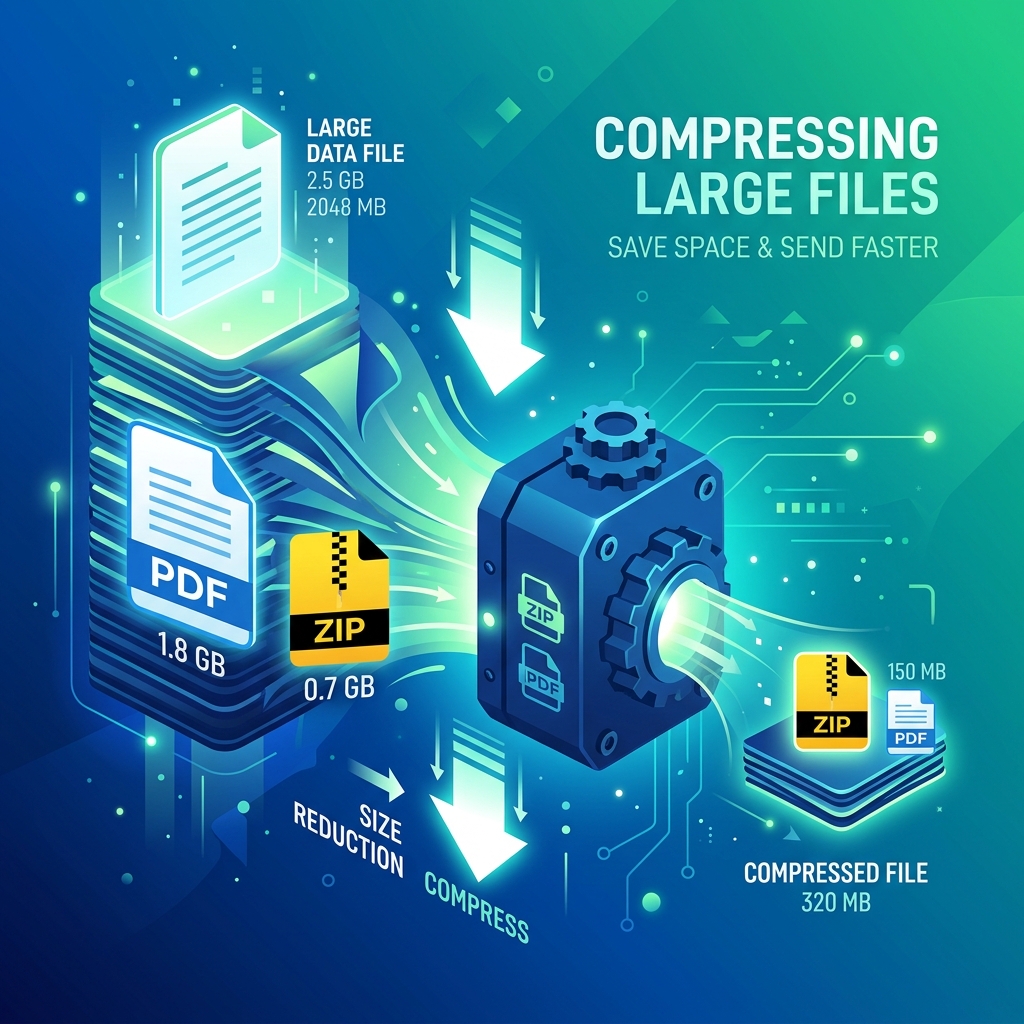
How to Compress PDF Files Without Losing Quality: The Complete Guide for 2026
Learn how to compress PDF files by up to 80% without noticeable quality loss — free tools, compression levels explained, and what DPI you actually need.
Enjoyed this article?
Subscribe to our newsletter for more insights, tutorials, and industry updates delivered directly to your inbox.