We value your privacy

We use cookies to enhance your browsing experience, serve personalized ads or content, and analyze our traffic. By clicking "Accept All", you consent to our use of cookies. Read our Privacy Policy for more information.

Technology

How to Merge PDF Files for Free in 2026: 5 Methods Compared

Rahul Das
May 28, 2026
12 min read
How to Merge PDF Files for Free in 2026: 5 Methods Compared
PDFMergeFree ToolsDocumentsPrivacy
Share this article:
AI

AI Search & Quick Summary

Key Takeaway: Compare five proven methods to merge PDF files for free in 2026 — browser-based tools, Adobe, Mac Preview, command line, and tips for password-protected files and batch merging.

Optimized for AI Search Engines & Google AI Overviews.

How to Merge PDF Files for Free in 2026: A Complete Comparison of Every Method

Merging PDF files sounds like it should be simple, and yet millions of people struggle with it every day. Maybe you are an accountant who needs to combine a dozen invoices into one document before sending them to a client. Perhaps you are a student assembling chapters from different textbooks into a single study guide. Or you might be a lawyer stitching contract appendices together for a filing. Whatever your reason, the ability to merge PDF files for free without sacrificing quality, privacy, or your sanity is essential in 2026.

The problem is that not all PDF merging tools are created equal. Some upload your sensitive documents to remote servers. Others slap watermarks on the output. Many impose strict file-size limits or cap you at two free operations per day before demanding a subscription. In this comprehensive guide, we compare five proven methods for merging PDFs, break down the privacy implications of each, and walk you through troubleshooting the most common issues you will encounter.

Merge PDFs Instantly — Free, Private, No Sign-Up

Combine your PDF files securely inside your browser. Nothing is uploaded to any server.

Merge PDF Files Free

Why Merging PDFs Is Harder Than It Looks

PDF, or Portable Document Format, was designed by Adobe in the early 1990s as a read-only format. It was never intended to be easily editable or composable. Each PDF file contains its own embedded fonts, image streams, cross-reference tables, and metadata. When you merge two PDFs, the tool must reconcile these internal structures — deduplicating shared fonts, recalculating page references, and preserving bookmarks and hyperlinks.

This is why simply concatenating the raw bytes of two PDF files does not produce a valid PDF. A proper merging tool must parse each document's internal object tree, assign new object IDs to avoid collisions, and rebuild the cross-reference table from scratch. The quality of this process determines whether your merged document retains clickable links, table of contents entries, and form fields.

Method 1: QuickRectify — Browser-Based, Private, and Unlimited

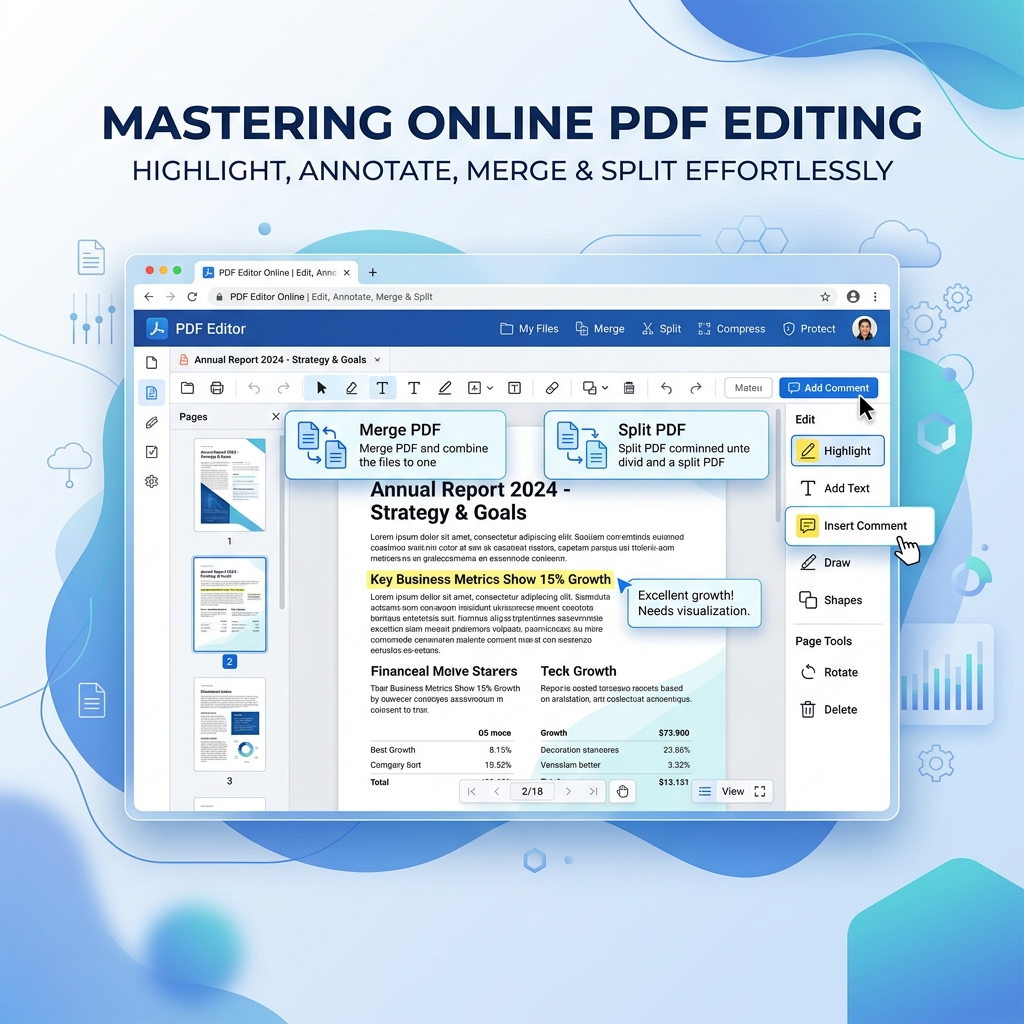
If privacy and simplicity are your top priorities, QuickRectify's free PDF merger is the strongest option available in 2026. Unlike cloud-based services, QuickRectify processes every file entirely within your web browser using client-side JavaScript. Your documents never leave your device — not even temporarily.

Step-by-Step Instructions

  1. Navigate to the QuickRectify Merge PDF page.
  2. Click the upload area or drag and drop your PDF files directly into the browser window.
  3. Rearrange the file order by dragging them in the list. The order you set here is the order pages will appear in the merged output.
  4. Click the Merge PDF button.
  5. Your merged file is generated instantly in your browser. Click Download to save it.

Why QuickRectify Stands Out

  • Zero server uploads: Your files are processed locally using your device's CPU and RAM. This makes it ideal for confidential legal documents, medical records, financial statements, and any file you would not want on someone else's server.
  • No file size limits: Because processing happens on your hardware, you are not constrained by server-side upload limits. Merge a 200 MB architectural blueprint if you need to.
  • No account required: No sign-up, no email verification, no credit card on file.
  • No watermarks: The output is a clean, professional PDF with no branding added.
  • Batch merging: Add as many files as you want in a single operation. There is no cap on the number of documents.

For users who need to compress the merged file afterward, QuickRectify offers a companion compression tool on the same platform.

Method 2: Adobe Acrobat Online

Adobe invented the PDF format, so it is no surprise that their online tools handle merging reliably. The free tier at acrobat.adobe.com allows you to merge PDFs with a polished interface.

Step-by-Step Instructions

  1. Go to acrobat.adobe.com and sign in with a free Adobe account.
  2. Select the Merge PDF tool from the toolbar.
  3. Upload your PDF files. You can also upload Word, Excel, or PowerPoint files, and Adobe will convert them to PDF before merging.
  4. Drag to reorder files or individual pages.
  5. Click Combine and download the merged file.

Limitations of the Free Tier

  • You are limited to two free operations per day. After that, Adobe prompts you to subscribe to Acrobat Pro at approximately $20 per month.
  • Files are uploaded to Adobe's cloud servers for processing, which may not be suitable for sensitive documents.
  • Individual file size is capped at 100 MB on the free plan.

Adobe Acrobat Online is best for users who already pay for Adobe Creative Cloud and need occasional merging with non-PDF file types mixed in.

Method 3: PDF24 Tools

PDF24 is a German-based service that has offered free PDF tools for over a decade. Their merge tool is straightforward and genuinely free without daily caps.

Step-by-Step Instructions

  1. Visit tools.pdf24.org and select Merge PDF.
  2. Upload your files or drag and drop them.
  3. Rearrange the order as needed.
  4. Click Merge and download your combined PDF.

Privacy Considerations

PDF24 states that uploaded files are automatically deleted from their servers after one hour. They operate under German data protection laws (GDPR), which provides a higher baseline of privacy than many US-based services. However, your files do travel to their servers during processing, so this method is not ideal for highly confidential documents.

PDF24 also offers a downloadable desktop application for Windows that processes files locally, similar to the QuickRectify approach but requiring installation.

Method 4: Mac Preview — The Built-In Option for macOS Users

If you are on a Mac, you already have a capable PDF merger built into the operating system. Apple's Preview app can combine PDFs without installing anything.

Step-by-Step Instructions

  1. Open the first PDF in Preview.
  2. Go to View → Thumbnails to display the page sidebar.
  3. Open the second PDF in another Preview window, also with Thumbnails visible.
  4. Select the pages you want to add from the second document (Command+A to select all).
  5. Drag the selected thumbnails from the second window into the sidebar of the first window. Drop them at the position where you want them inserted.
  6. Go to File → Export as PDF to save the merged document.

Limitations

  • Preview works well for simple merges of two or three files, but becomes cumbersome with larger batches.
  • There is no built-in way to reorder individual pages from multiple documents in a single view.
  • The Export as PDF option sometimes increases file size compared to the originals because Preview may re-encode images.
  • Not available on Windows or Linux.

For Mac users who need more control or batch capabilities, QuickRectify's browser-based merger works perfectly in Safari and Chrome on macOS.

Method 5: Command Line Tools (pdftk and qpdf)

For developers, system administrators, and power users who prefer the terminal, command-line PDF tools offer unmatched flexibility and scriptability.

Using pdftk

pdftk (PDF Toolkit) is a widely used command-line tool available on Linux, macOS (via Homebrew), and Windows.

Installation on macOS: brew install pdftk-java

Basic merge command: pdftk file1.pdf file2.pdf file3.pdf cat output merged.pdf

Merge specific pages: pdftk A=file1.pdf B=file2.pdf cat A1-5 B3-7 output combined.pdf

This selects pages 1-5 from the first file and pages 3-7 from the second file.

Using qpdf

qpdf is a more modern alternative that handles encrypted PDFs gracefully.

Installation: brew install qpdf (macOS) or apt install qpdf (Ubuntu/Debian)

Basic merge: qpdf --empty --pages file1.pdf file2.pdf file3.pdf -- merged.pdf

Merge with page ranges: qpdf --empty --pages file1.pdf 1-10 file2.pdf 5-20 -- output.pdf

When to Use Command Line

  • Automation: You need to merge PDFs as part of a script, cron job, or CI/CD pipeline.
  • Batch processing: You have hundreds of files to merge programmatically.
  • No GUI available: You are working on a remote server via SSH.

Command line tools are powerful but require technical knowledge. For most users, a visual tool like QuickRectify is far more practical.

Privacy Comparison: Which Method Is Safest?

When you merge PDFs containing contracts, tax returns, medical records, or proprietary business documents, privacy matters enormously. Here is how each method compares:

  • QuickRectify: Files never leave your device. Processing is 100% client-side. This is the safest option for sensitive documents.
  • Mac Preview: Also fully local. No internet connection required. Equally private.
  • Command line (pdftk/qpdf): Runs entirely on your machine. No data transmitted externally.
  • PDF24: Files are uploaded to servers in Germany. Deleted after one hour. GDPR compliant but not fully private.
  • Adobe Acrobat Online: Files uploaded to Adobe's cloud. Subject to Adobe's privacy policy and US data regulations.

If you are handling documents covered by regulations like HIPAA, GDPR, or SOX, stick with local-processing tools: QuickRectify, Preview, or command-line utilities.

Handling Password-Protected PDFs

One of the most common frustrations when merging PDFs is encountering password-protected files. Most merging tools — including Adobe's free tier — will reject encrypted PDFs outright.

How to Handle This

  1. If you know the password: Open the PDF in Adobe Reader or Preview, enter the password, then use File → Export as PDF (Preview) or File → Save As (Acrobat) to create an unprotected copy. You can then merge this copy normally.
  2. Using qpdf from the command line: qpdf --password=yourpassword --decrypt protected.pdf unlocked.pdf. This removes the encryption and produces a clean file ready for merging.
  3. Owner password vs. user password: PDFs have two types of passwords. The user password prevents opening the file entirely. The owner password restricts actions like printing and copying but still allows viewing. Many tools can merge files with only owner-password restrictions without needing the password.

Batch Merging: Combining Dozens or Hundreds of Files

Sometimes you need to merge not just two or three files, but dozens or even hundreds. Monthly invoice archives, scanned document batches, and multi-chapter book manuscripts all present this challenge.

Best Approaches for Batch Merging

  • QuickRectify: Supports adding multiple files at once via drag-and-drop. You can select an entire folder's worth of PDFs in your file picker and drop them in. Try it here.
  • pdftk with wildcards: pdftk *.pdf cat output all-combined.pdf merges every PDF in the current directory in alphabetical order.
  • Shell scripting: Write a simple bash script to merge files in a specific order based on filename patterns or date modified.

For batch merging, file naming conventions are critical. Name your files with numerical prefixes (001-invoice.pdf, 002-invoice.pdf) so they sort correctly regardless of which tool you use.

Managing File Order Before and After Merging

Getting the page order right is one of the trickiest parts of merging PDFs, especially with large batches. Here are practical strategies:

  • Pre-sort your files: Rename files with numerical prefixes before adding them to any merging tool.
  • Use the drag-and-drop reorder feature: Tools like QuickRectify and Adobe let you visually rearrange files before merging.
  • Verify with a quick scroll: After merging, open the output file and quickly scroll through to confirm the order is correct before deleting your originals.
  • Split and re-merge if needed: If you discover a page is in the wrong place, use a PDF splitter to extract it, then re-merge in the correct order.

Troubleshooting Common Merge Issues

Merged File Is Larger Than Expected

When merging, some tools duplicate shared resources like fonts instead of deduplicating them. If your merged file is significantly larger than the sum of the originals, run it through a PDF compressor to optimize the internal structure and reduce size by 20-50%.

Some Pages Appear Rotated

This happens when original files have different page orientations (portrait vs. landscape). The merged file preserves each page's original orientation, which is technically correct but can look odd when scrolling. You can fix individual pages after merging using a PDF rotation tool.

Bookmarks and Links Are Lost

Not all merging tools preserve internal bookmarks and hyperlinks. QuickRectify and pdftk both retain bookmarks from the original files. If bookmarks matter for your use case, test your tool of choice with a small sample before committing to a large merge.

The Merge Tool Crashes or Freezes

This typically happens when one of the input files is corrupted or uses an unusual PDF specification. Try merging the problematic file separately to identify which one is causing the issue. You can often fix corrupted PDFs by opening them in Chrome (which has a built-in PDF viewer) and printing to PDF.

When to Use Each Method: Quick Decision Guide

  • Everyday merging (1-20 files): QuickRectify — fastest, most private, no limits.
  • Merging non-PDF files (Word, Excel) into one PDF: Adobe Acrobat Online — handles format conversion.
  • Quick two-file merge on Mac: Preview — already installed, no internet needed.
  • Automated or scripted merging: pdftk or qpdf — integrate into workflows and pipelines.
  • Merging with detailed page selection: qpdf — specify exact page ranges from each file.

Frequently Asked Questions

Can I merge PDF files for free without a watermark?

Yes. QuickRectify's merge tool is completely free and never adds watermarks to your output files. Mac Preview also produces clean output. Most cloud-based tools avoid watermarks on their free tiers, though some less reputable services do add them.

Is it safe to merge PDFs online?

It depends on the tool. Cloud-based services upload your files to their servers, which introduces risk for sensitive documents. For maximum safety, use a client-side tool like QuickRectify that processes everything in your browser without any server upload, or use an offline tool like Preview or pdftk.

How do I merge password-protected PDF files?

You need to remove the password protection first. Open the protected PDF, enter the password, and export or save it as a new unprotected PDF. Then merge normally. The command-line tool qpdf can also decrypt PDFs: qpdf --password=PASS --decrypt input.pdf output.pdf.

Can I merge hundreds of PDF files at once?

Yes. QuickRectify supports batch uploads with no file count limit. For very large batches (500+ files), command-line tools like pdftk with wildcard patterns (pdftk *.pdf cat output merged.pdf) are the most efficient approach.

Why is my merged PDF file so large?

Merging can increase file size because some tools duplicate shared resources like fonts across the combined document. After merging, use a PDF compressor to optimize the file and reduce size by 20-50% without visible quality loss.

Conclusion

Merging PDF files in 2026 does not need to cost money, compromise your privacy, or require installing heavyweight software. For the vast majority of users, QuickRectify's browser-based PDF merger offers the ideal combination of speed, privacy, and simplicity — your files never leave your device, there are no limits on file size or count, and the output is clean and professional. Mac users have the additional convenience of Preview for quick two-file merges, while developers and power users can leverage pdftk or qpdf for scripted batch operations. Whichever method you choose, always verify the page order of your merged document before discarding the originals, and consider running the output through a compressor if the combined file size is larger than expected.

Rahul Das

About the Author: Rahul Das

Tech Enthusiast, Software Developer, and Content Creator. Passionate about building scalable web applications and sharing practical knowledge to help students and professionals grow in their tech careers.

Published: May 28, 2026

Enjoyed this article?

Subscribe to our newsletter for more insights, tutorials, and industry updates delivered directly to your inbox.